Complete Workflow: Extract, Filter, Export
Extract structured fields from unstructured text, filter by criteria, and export a refined dataset. The same pattern works on agent traces, chat logs, customer-support transcripts, or any other unstructured text dataset.
Overview
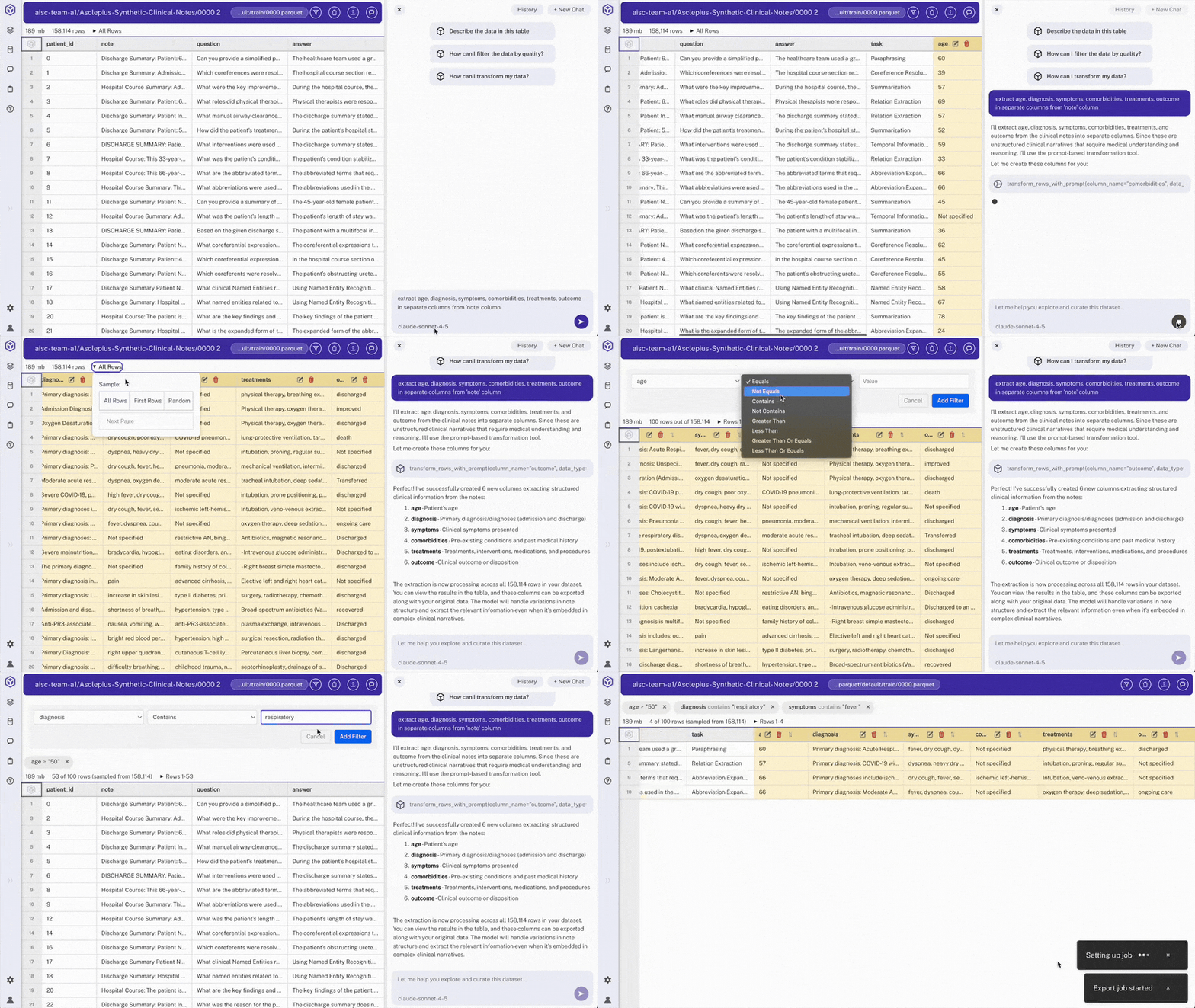
This walkthrough uses a 150,000+ row parquet file of unstructured medical records as a concrete example. Use LLM-based extraction to create structured columns from the free-text note field, filter the dataset by age and diagnosis criteria, and export a subset with selected columns. Substitute your own log file (Claude Code transcripts, chat histories, support tickets) and the workflow is identical: extract fields, build a SQL view, export.
Steps
- Load the dataset
- Extract structured fields using chat
Open any cell from the 'note' column containing patient information
> Note: We can view full unstructured text data for an individual chart by scrolling down
Use chat to request extraction: "extract age, diagnosis, symptoms, comorbidities, treatments, outcome in separate columns from 'note' column"
> Note: Hyperparam will create 6 new columns and populate them with the extractions.
Columns appear as:
age,diagnosis,symptoms,comorbidities,treatments,outcome> Note: Scroll down and you will see Hyperparam filling out all rows
- Create a SQL view for the target cohort
In chat, request: "create a view of patients over 50 with a respiratory diagnosis and fever symptoms, keeping only subject_id, age, diagnosis, symptoms, comorbidities, treatments, outcome"
Hyperparam calls
add_viewwith a query like:SELECT subject_id, age, diagnosis, symptoms, comorbidities, treatments, outcome FROM "0000.parquet" WHERE age > 50 AND diagnosis ILIKE '%respiratory%' AND symptoms ILIKE '%fever%'> Note: Views replace the old filter UI. They are composable, support JOINs across multiple sources, and can project specific columns. Views appear in the workspace file browser alongside sources.
- Export the view
Open the view tab, click the ⋮ button, and choose "Write Table"
Select export options: columns, max rows, file name (e.g.,
filtered_patients.parquet)Export runs the view's SQL over the full dataset.
Expected Results
- Extracted columns: Structured fields parsed from unstructured patient text
- Final export: Exported file includes only patients with matching criteria and only selected columns.
Other Use Cases
- Dataset Discovery: Use natural language to find public datasets
- Classifying Prompt Patterns: Categorize unstructured prompts to see your real traffic mix
- Quality Filtering: Score and filter low-quality, sycophantic responses in chat logs
- Deep Research: Multi-step AI workflow for comparing model outputs